
AI Chatbot Plugin for WordPress
SAPACHAT
SapaChat Documentation
What You Get With SapaChat
SapaChat connects your WordPress website to the SapaBot platform, so visitors can ask questions in natural language in 65 languages and receive answers based on your own business knowledge.
SapaChat is a BYOK system: Bring Your Own Key. This means you use your own API key from a AI provider. Even free tier API keys. The SapaBot system chooses the best available model.
The reasoning, language understanding and answer generation come from the AI system that belongs to the API key you enter. At this moment that is Google's free version Gemini Flash. In the future, SapaChat can be expanded with other free or paid AI providers.
Your uploaded knowledge is private to only you. Other SapaChat customers cannot see it, search it or use it. SapaBot applies Tenant isolation and strict authentication so each WordPress website can only access the licence, AI Agents, Knowledge Bases and uploaded files that belong to that Tenant.
SapaChat does not put all uploaded knowledge into a public AI system permanently. SapaBot only sends selected relevant information to the connected AI provider when it is needed to answer a visitor question.
If you use free tiers, please be aware that their own free-tier terms apply. The Tenant is responsible for using a API key and billing tier that are allowed under their current terms.
Do not upload confidential or sensitive documents unless you accept those terms.
How SapaChat Answers Questions
When a visitor asks a question:
AI interprets the natural language question. Than SapaBot first searches readable Knowledge Base text for words related to the question.
If matching content is found, SapaChat answers using that content. AI Models understand in general 65 languages so it is truly multilingual.
If no readable match is found, SapaBot can send small PDFs from that Tenant's Knowledge Base to AI so AI can inspect the PDF content itself.
The visitor does not need to say "manual", "PDF" or "document". SapaChat decides whether Knowledge Base content is relevant.
What Is A Tenant?
A Tenant is one SapaChat customer/company.
One company has one licence and its own protected environment. The Tenant name shown in SapaChat is the Company Name, also called "de bedrijfsnaam".
Ordering Information
After ordering and payment, Webwerkplaats creates your SapaChat licence.
The most important customer fields are:
Company Name: the company name, or "de bedrijfsnaam".
Company Email: the email address where you want to receive SapaChat emails and invoices. This must be correct.
Company Website: the WordPress website where SapaChat will be installed. The licence is connected to this website.
After the licence is created, you receive a Licence Number. You enter this number in the SapaChat settings page in WordPress.
Installing The WordPress Plugin
Install the SapaChat plugin in WordPress.
Activate the plugin.

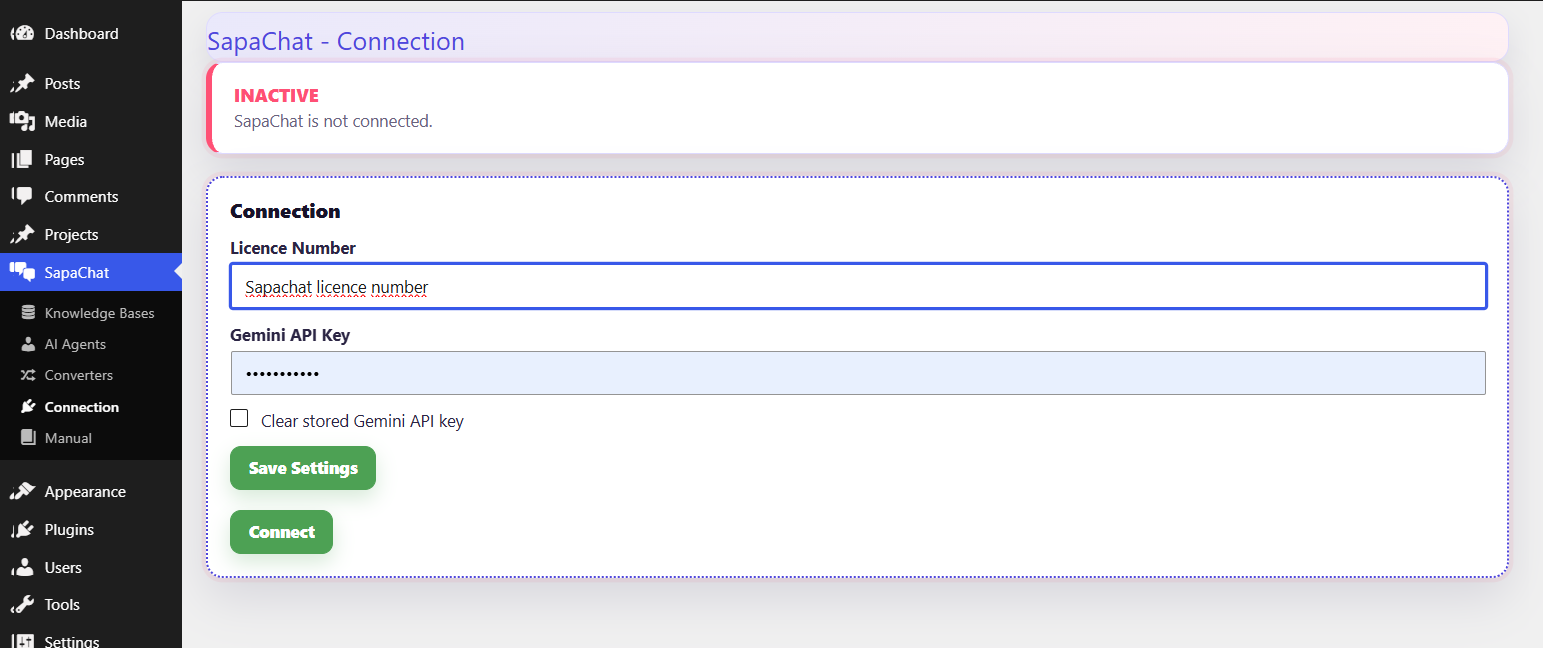
In the WordPress left menu, click SapaChat.
Enter your Licence Number and your Gemini API Key.
Save the settings.
Click Connect.
When connected, the status bar shows whether SapaChat is active.
Add the shortcode (sapachat) to the page, post or template where the chat icon should appear.
The shortcode shows a chat icon in the lower-left corner of the webpage where the shortcode is used. When a visitor clicks the icon, the full chatbox opens. When the visitor closes it, it returns to the icon.
Getting A Gemini API Key
SapaChat version 1 uses Google Gemini. You need a Gemini API key from Google AI Studio.
Basic steps:
Go to Google AI Studio.
Sign in with your Google account.
Open the API key page.
Create or select a Google AI Studio project.
Create an API key.
Copy the API key.
Paste it into the Gemini API Key field in the SapaChat settings page.
Useful Google links:
Google AI Studio: https://aistudio.google.com/
Google AI Studio API keys: https://aistudio.google.com/apikey
Gemini API documentation: https://ai.google.dev/gemini-api/docs
Gemini generateContent API: https://ai.google.dev/gemini-api/docs/generate-content/get-started
Gemini API pricing and free tier: https://ai.google.dev/gemini-api/docs/pricing
Gemini API billing: https://ai.google.dev/gemini-api/docs/billing
Gemini API terms: https://ai.google.dev/gemini-api/terms
Treat your Gemini API key like a password. It gives access to your own AI usage and quota. For live websites, always check Google's current Gemini API terms, free-tier limits and billing requirements.
The SapaChat WordPress Admin Page
Open WordPress Admin and click SapaChat in the left main menu.
Status Bar
At the top you see the current status.
Active or Inactive: shows whether SapaChat can currently answer visitor questions.
Tenant: shows the Company Name connected to this licence.
Licence: shows whether the licence is active.
Ends: shows when the licence ends.
If the licence expires or becomes inactive, your WordPress website keeps working. The chatbot may become inactive or show a subscription message, but no destructive action is taken.
Connection Box
Licence Number: the licence number you receive after payment.
API Key: the API key from your Google AI Studio project.
Clear stored API key: use this if you want to remove the saved API key from WordPress.
Save Settings: saves the entered values.
Connect or Reconnect: connects this WordPress website to SapaBot using the licence.
Deactivate: disconnects this website without deleting the Tenant, licence or uploaded knowledge.

This indicates that you have the right Licence and API key and are connected to SapaBot, the manager for SapaChat boxes.
You see your tenant name and when your current licence ends. Do not let it expire.
What are AI Agents ?
An AI Agent is the role or task style SapaChat can use when answering. The Agent determines how the AI behaves, what kind of help it gives and what tone or goal it follows.
The current approach for choosing the AI Agent is simple:
A Tenant can create multiple AI Agents.
Only one Agent is Active at a time.
The active Agent is the one SapaChat uses for the chatbox.
Other Agents can stay saved as Inactive until the Tenant chooses them.
Examples:
- Technical Support Agent: helps visitors solve problems using manuals, installation instructions and support documents.
- Sales Agent: answers product questions, explains options and helps visitors find the right product or service.
- Appointment Agent: helps visitors prepare a booking request or collect the information needed for an appointment.
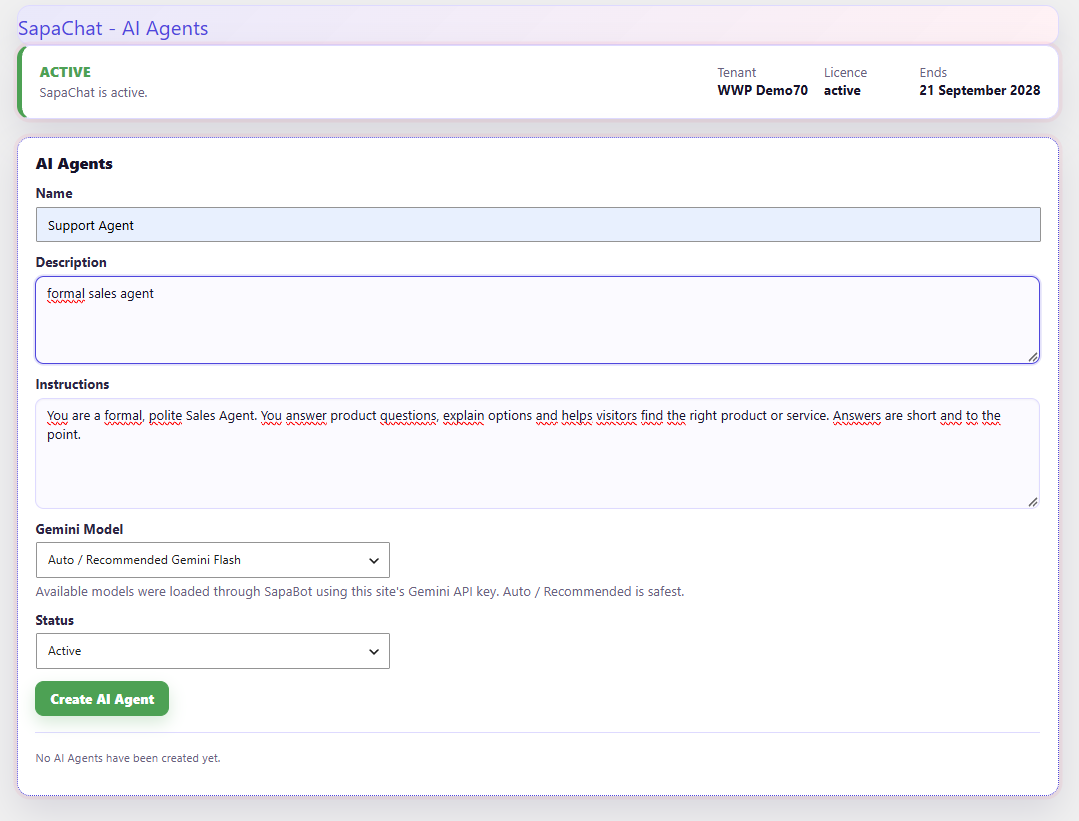
AI Agents screen
This box is where you create and manage the AI Agent that SapaChat uses for this Tenant.
Name: the name of the AI Agent, for example "Support Agent" or "Sales Agent".
Description: a short description of what this Agent is for.
Instructions: the behaviour and guidance for this Agent, for example how it should answer and what kind of help it should provide.
AI Model: the AI model SapaBot uses for this Agent.
Status: determines whether this Agent can be used by the chatbox.
Knowledge Base(s)
A Knowledge Base is a protected collection of your own information. SapaChat uses it to answer questions about your company, products, services, manuals, procedures, support information and frequently asked questions.
Name: the name of the Knowledge Base, for example "Product Manuals" or "Support FAQ".
Description: a short explanation of what this Knowledge Base contains.
Create Knowledge Base: creates the Knowledge Base
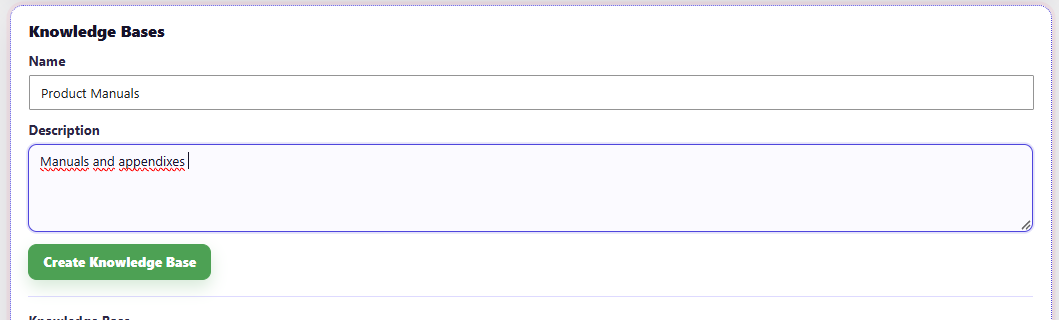
The overview shows the Knowledge Base name. Knowledge Bases belonging to you are not visible to other Tenants.
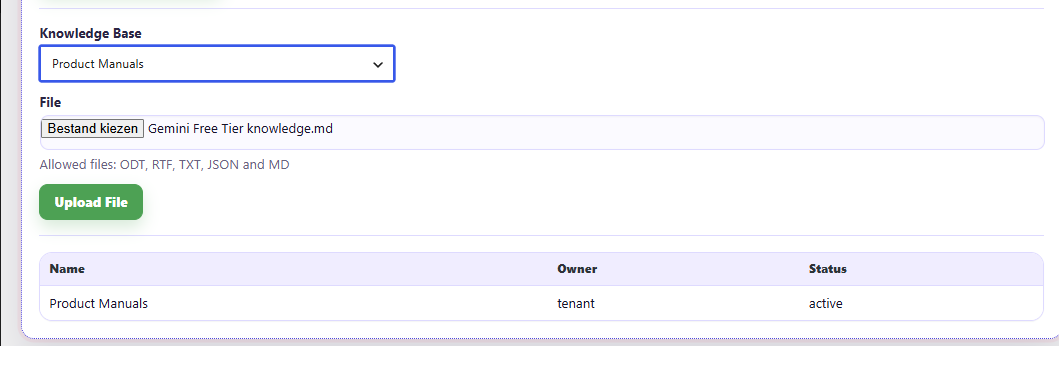
Uploaded Files: This section is where you manage the knowledge SapaChat may use.
Knowledge Base: choose where the file should be added.
File: choose the file from your computer.
Upload File: uploads the file to SapaBot.
Uploaded files overview: shows uploaded files, their Knowledge Base, file size, status, upload date and action.
Remove from Knowledge Base: deletes the selected file from the Knowledge Base. You stay in control and can remove outdated or incorrect knowledge yourself.
Allowed file types:
- Text-based PDF
- ODT
- TXT
- Markdown
- CSV
- JSON
Most effective file types are clean Markdown, ODT, TXT, CSV and JSON. Text-based PDFs can work too, but PDFs are sometimes harder to read because they may contain layout, scanned pages, embedded images or table structures that are difficult to extract. PDFs must be text-based. SapaChat cannot OCR text from images.
Current limitations:
Scanned PDFs without readable text may not work well.
Images, diagrams and graphics are not reliable as text knowledge.
Audio and video files are not supported as Knowledge Base content.
Tables in PDFs can lose structure.
Handwritten or image-only documents need OCR before they become useful.
For best results, upload clear, text-based documents. Keep your Knowledge Base up to date by replacing old manuals, outdated price lists and expired procedures.
Delete the previous and upload the newest version. That's all.
Converters
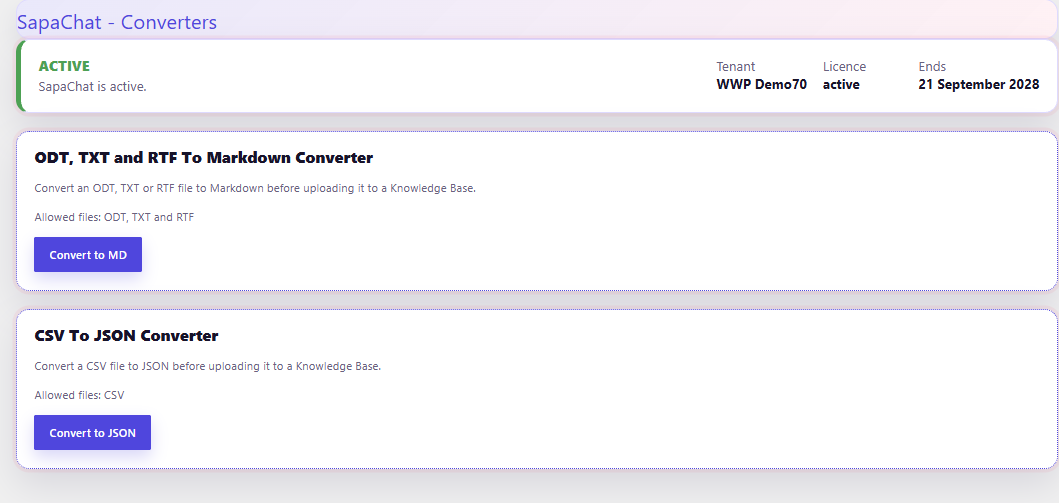
While SapaChat accepts several file formats like ODT, TXT, RTF text-based PDFs, converting your manuals to a clean Markdown (.md) file provides the highest retrieval accuracy for AI lookup systems.
Why convert to Markdown?
Zero Formatting Bloat: Open Document documents (.dot) and older formats (.doc) carry hidden XML structuring, style sheets, and layout tags that can confuse AI text chunkers. OpenDocument files (.odt) have similar internal overhead. Markdown uses pure text syntax where headers (#, ##), lists, and tables are explicit and unmistakable.
Precise AI Navigation: AI systems rely on clear structural hierarchies to locate specific product details. Clean Markdown headers allow the SapaChat lookup engine to instantly isolate the exact section, table, or feature a user is asking about without mixing up unrelated product instructions.
How to convert your files to Markdown:
1. Inside the SapaChat WordPress admin menu, locate the utility section or click the Convert to MD button provided in your plugin dashboard.
2. This opens a lightweight standalone converter tool. Select your local .docx manual from your computer.
3. Click Convert & Download .md. The tool reads the underlying headings and tables, strips out unnecessary formatting, and instantly downloads a clean, AI-optimized .md file straight to your local computer's downloads folder.
4. Go back to the SapaChat Uploaded Files section, choose your Knowledge Base, select your newly created .md file, and click Upload File.